Free, no sign-up, no watermark, no export limits Runs in your browser — nothing is uploaded Autosaves as you work
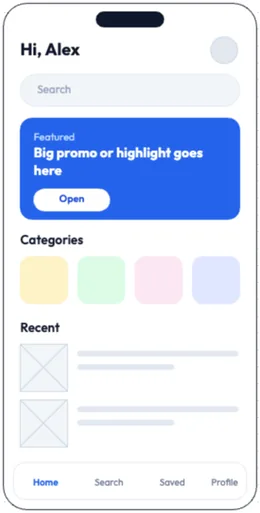
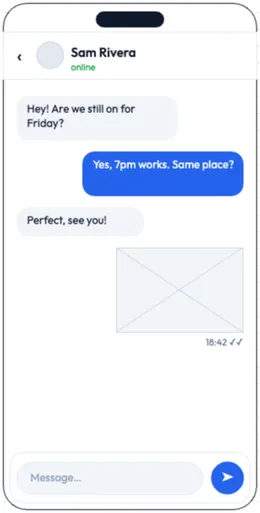
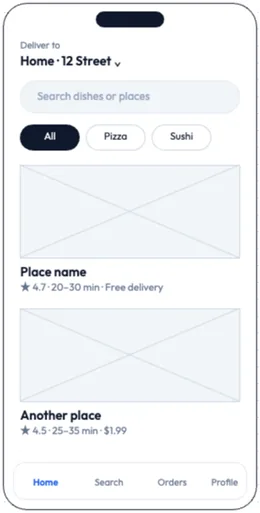
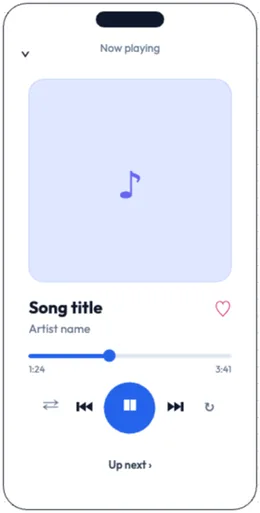
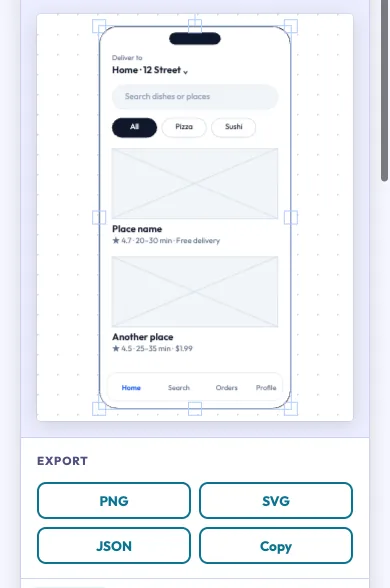
A free, browser-based wireframe tool — no sign-up, no download, and nothing you sketch is uploaded. Start from one of 14 ready-made screens (landing page, dashboard, product page, checkout, blog post, portfolio, task board, contact page, and app home, onboarding, chat, food delivery, music player and settings for phones), or rough out a screen with 25 ready-made UI elements: page sections (browser and phone frames, navbar, hero, sidebar, footer), form controls (button, input, dropdown, checkbox, radio buttons, toggle, search bar, text area, login form) and content blocks (card, table, list, tabs, modal, avatar, pagination, heading, text block, image placeholder). Works on desktop, tablet and phone with a mouse, trackpad or stylus. Export the finished low-fidelity mockup as a PNG, an SVG or a JSON project you can import again and keep editing. There are no export limits: export as often as you like.
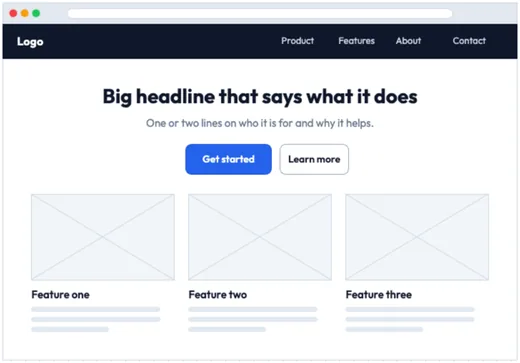
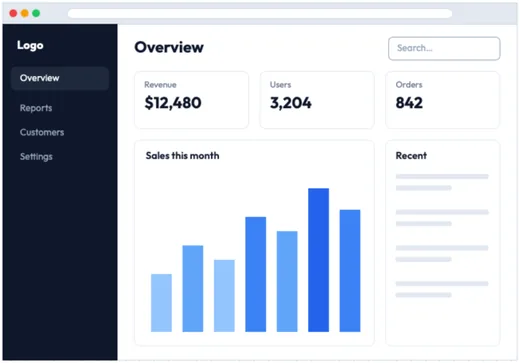
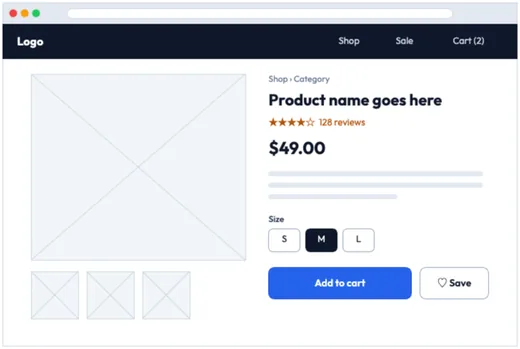
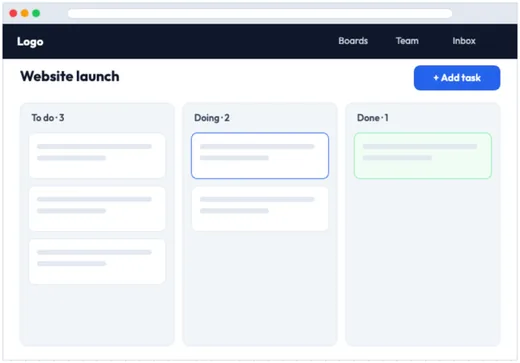
Start from a ready-made screen
Click a screen to drop it on the canvas above, or find all 14 in the Templates tab. Double-click any text in it to change it.
Drop a PNG into a doc or a ticket, hand an SVG to a designer, or save a JSON project and import it later to keep editing. No watermark and no export limit.
Private and portable
No account, nothing uploaded
Your wireframes are built and saved in this browser, never on a server. It works on desktop, tablet and phone with a mouse, trackpad or stylus, and keeps working offline once the page has loaded.
Sketch your next screen now
Free, no sign-up, nothing uploaded. Scroll up, pick a screen and start editing.
Low-fidelity wireframes are for settling structure and flow before anyone argues about colour. The templates panel holds 14 whole-screen templates and a 25-piece element kit of frames, page sections, form controls and content blocks, and the toolbar adds 12 general tools (select, pencil, line, arrow, rectangle, rounded rectangle, ellipse, polygon, text, sticky note, image and eraser) for annotations and custom blocks. Everything stays vector while you edit, so SVG exports stay scalable and PNG exports render at 2x.
1
Pick a starting point. Drop in a whole screen from Web screens or Mobile screens, or a Browser frame or Phone frame to start from scratch.
2
Block out the layout. Add a navbar, hero, cards, forms or a table for each region of the page.
3
Tidy it up. Turn on the grid, then drag a placed element to snap it into alignment. Duplicate with Ctrl/Cmd+D to repeat rows.
4
Export or iterate. Save a PNG or SVG to drop into a doc, or a JSON project to keep refining later.
How this compares: unlike Figma, there's no account and nothing you draw leaves your device. The element kit, grid snapping and alignment tools cover a first-pass layout, and the JSON export reopens with Import JSON in any browser, so a wireframe isn't tied to one machine. It's built for one person sketching fast; for live co-editing or clickable prototypes, export the SVG and carry on in a full design app.
Last updated October 2026. Runs in any modern browser — no app or download.
Wireframe tool FAQ
What can I wireframe with this tool?
This wireframe tool sketches low-fidelity screens for websites and apps. Start from one of 14 ready-made web and mobile screens, or drop in browser and phone frames, navbars, hero sections, forms, tables, cards, modals and the rest of the 25-piece element kit from the templates panel, then arrange them on a snap-to-grid canvas to rough out a page or flow. Every element stays a separate editable object, so a screen can be rearranged as often as the idea changes.
Is this a low-fidelity wireframe tool or a full UI design tool?
It is deliberately low-fidelity. The element kit gives you 25 ready-made pieces, from frames and navbars to login forms, tables and modals, so you can settle structure, hierarchy and flow before anyone commits to colour and type. Each piece is an ordinary group of shapes and text, so you can recolour it, resize it or ungroup it to make your own variant. Clickable prototyping is not included; when a wireframe is ready for that stage, export it as SVG and take it into a full design app.
Can I reuse the same wireframe elements across a mockup?
Yes — wireframe elements are meant to be reused across a mockup. Duplicate any element or group with Ctrl/Cmd+D, and use the alignment and distribution tools to keep buttons, inputs and blocks evenly spaced across a screen. Copy and paste works between screens on the same canvas too, so a nav bar drawn once can sit at the top of every page.
How do I share a finished wireframe?
Export it as a PNG or SVG image to drop into a doc or slide, or save the JSON project file so you or a teammate can reopen it with Import JSON in any browser and keep editing. PNG drops straight into a doc or slide, while SVG stays sharp at any size. Keep the JSON while the wireframe is still moving — it is the only export that reopens with each block still separate.
Where are my wireframes saved?
Your work autosaves to this browser as you draw, so a refresh or a closed tab won't lose it, and nothing is sent to a server. To move a wireframe to another computer or browser, or hand it to a teammate, export the JSON project and open it there with Import JSON. Every element comes back separate and editable.
Are there keyboard shortcuts?
Yes — the wireframe tool has keyboard shortcuts for editing, view and tool switching. Ctrl/Cmd+Z undoes and Ctrl/Cmd+Shift+Z or Ctrl/Cmd+Y redoes (up to 50 steps), Ctrl/Cmd+D duplicates the selection, Ctrl/Cmd+C and Ctrl/Cmd+V copy and paste, and Delete or Backspace removes what's selected. Plus and minus zoom in and out, holding Space lets you pan the canvas, and Escape finishes a polygon. Single keys switch tools: V select, P pencil, L line, R rectangle, O ellipse, T text, A arrow.
What colour tools are included?
Pick a base colour and the harmony picker generates nine sets from it — shades, tints, tones, monochromatic, complementary, split-complementary, analogous, triadic and tetradic. You can also load a reference image and pull its dominant colours straight into the swatch tray. Clicking a swatch sets the active stroke or fill, whichever the colour switch is pointing at, and applies it to any block you have selected.